What is attendance tracking?
Attendance tracking is used to generate reports in Backstage that will tell event organizers whether or not their event participants attended their event.
The criteria or rules that are used to determine whether or not a participant has attended an event can be configured in Backstage, and are based on:
- Whether the participant activated the app or checked-in to the event.
OR - Whether the participant, attending in-person or virtually, attended the agenda sessions that are relevant to them, and when applicable, the associated video breakouts.
Note: Even though activating the app can be used as a criteria by the system to determine whether or not an attendee has attended the event (visible via the "Attendance status" field), event organizers can still refer to the separate "Status" field (present in the users page and in the users export) in order to see whether or not an attendee has activated the app. More information on this is available in the How can I configure the attendance tracking rules and criteria for my events? section.
In this article we’ll explain in detail:
- What rules and criteria are used to determine event attendance for in-person and virtual attendees?
-
How can I configure the attendance tracking rules and criteria for my events?
- Enabling and editing the event and session attendance tracking criteria in the organization's default workspace settings
- Configuring the criteria for in-person attendees
- Configuring the criteria for virtual attendees
- Enabling and editing the event and session attendance tracking criteria in the workspace settings
- What if I’m using a single live session across multiple agenda sessions?
- How to download an attendance report for my event?
- What data is included in the event attendance tracking report?
- How to refer to the Attendance status field for my audience?
What rules and criteria are used to determine event attendance for in-person and virtual attendees?
Whether an attendee has effectively attended an event or a session is based on specific rules or criteria that need to be met.
These rules/criteria vary depending on whether the participants are attending in person or virtually, and are summarized below:
| Event type | Attending how | Possible session attendance criteria | Possible event attendance criteria |
| Virtual | Virtually only |
Virtual criteria only Attendee has watched minimum X minutes of a live session or a video breakout. Attendee has watched the minimum % of live session duration (VOD not supported). |
Attendee has attended at least X number of live sessions (VOD not supported). |
| In-person | In-person only |
In-person criteria only Attendee has checked into the session. |
Attendee has activated the app or checked into the event. Attendee has checked into at least X number of sessions. |
| Hybrid | Virtually (based on "Attending” field in user page) |
Virtual criteria only Attendee has watched minimum X minutes of a live session or a video breakout. Attendee has watched the minimum % of live session duration (VOD not supported). |
Attendee has attended at least X number of live sessions (VOD not supported). |
| In-person (based on "Attending” field in user page) |
In-person criteria only Attendee has checked into the session. |
Attendee has activated the app or checked into the event. Attendee has checked into at least X number of sessions. |
If the event is “hybrid“ and the user does not have the “Attending“ field populated in their user profile, the system will first check if the user can be considered as "attending virtually". If the user can be considered as "attending virtually", the system will then verify if the user can be considered as "attending in-person".
The above criteria and rules can be adjusted in order to allow you to determine how to track the attendance to your event. Read on below to find out how.
How can I configure the attendance tracking rules and criteria for my events?
Event and session attendance can be configured on your events:
- In the organization’s default workspace settings, to define the default attendance tracking criteria for all workspaces associated with the organization.
- In the individual workspace’s settings, to edit the exact attendance criteria for that workspace.
Note: Attendance tracking configurations within a workspace are not saved and carried over when creating and using workspace templates. Templates and workspaces created from templates will always by default use the attendance tracking configuration defined in the organization’s default workspace settings.
Enabling and editing the event and session attendance tracking criteria in the organization's default workspace settings
Access your organization in Backstage, and go to the Default workspace settings.
Scroll down to and open the Attendance criteria section:
Configuring the criteria for in-person attendees
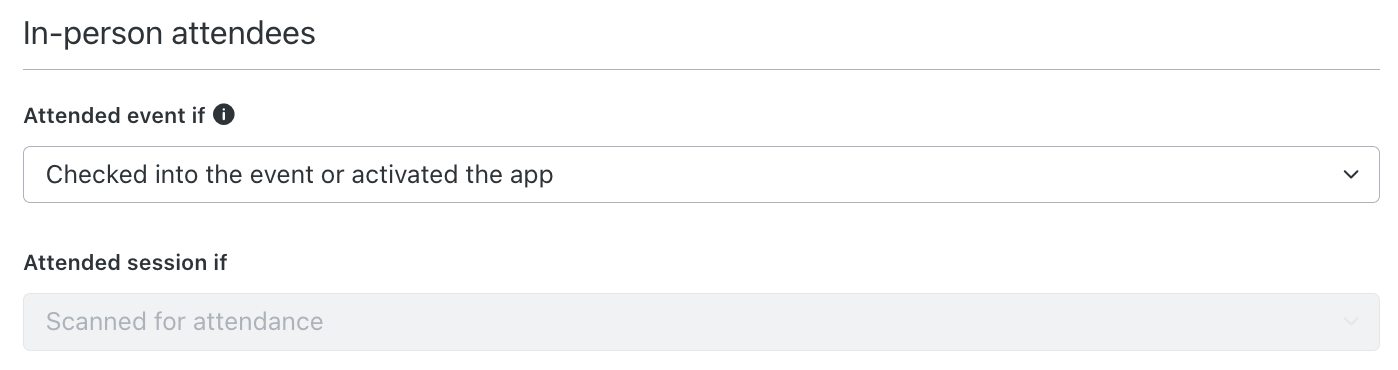
"Attended event if" field
An in-person attendee can be considered to have attended an event IF:
Option 1: Checked into the event or activated the app
They checked into the event (via Event check-in, with or without badge printing, if this advanced module is installed) OR they simply activated the app.
Selecting this option means that event attendance will be determined based on event check-ins, if the advanced Event check-in module is used on the workspace. If the advanced Event check-in module is not used on the workspace, then event attendance will only be determined based on whether or not the attendee activates the app.
Option 2: Checked into the event or attended at least X sessions
They checked into the event (via Event check-in, with or without badge printing, but only if this advanced module is installed) OR the checked into a minimum number of sessions (via the Event check-in, with or without badge printing, but only if this advanced module is installed).
"Attended session if" field
Here session attendance is only based on whether the participant was checked-in (scanned) upon arriving at the session, using the advanced Session check-in module (if installed). No other options are available.
Configuring the criteria for virtual attendees
Attended event if
Here you can choose between:
- The participant is considered “attended” if they have activated the app.
OR - The participant is considered “attended” if they have attended at least X number of sessions (you can define the minimum number of sessions using the “Minimal sessions to attend” field - the default value is 1).
Attended session if
The attendee attended the session’s live stream:
- Whether the participant’s watch time for a live session is more than the specified number of minutes - for example, if the attendee has watched more than 20 minutes. The default value here is 5 minutes.
OR - Whether the participant’s watch time for a live session is more than the specified percentage % of the full live session duration - for example, if an attendee has watched more than 50% of the live session full duration of 1 hour, i.e. 30 minutes. The default value here is 5%.
OR
The attendee attended the session’s video breakout:
- Whether the participant’s attendance for the session’s video breakout is more than the specified number of minutes - for example, if the attendee has watched more than 20 minutes. By default, the minimum required watch time is set to 5 miniutes.
Use case examples:
- If you are running an event as a webinar that relies on live streams, the session attendance can be calculated based on whether the attendee has attended the live session.
- If your event is an advisory board event that relies on video breakouts (virtual meetings), the session attendance will be calculated based on whether the attendee has attended the video breakout.
Enabling and editing the event and session attendance tracking criteria in the workspace settings
Once you have enabled and edited the attendance tracking criteria in the organization’s default workspace settings, you can also edit the criteria for your individual workspaces based on your specific event's needs.
To do so, go to the workspace general settings, and access the Attendance criteria tab:
Here you can see the default attendance criteria that are applied to the workspace, based on the exact same settings that are present in the parent organization’s default workspace settings.
You can edit the criteria here in order to apply custom criteria to this specific workspace. Changes made here will only affect this workspace and not affect the settings made in the organization’s default workspace settings.
What if I'm using a single live session per agenda session?
If you are associating a dedicated individual live session per individual agenda session, then all you need to do is associate the agenda session to the live session, and make sure that the start and end date of the agenda session and the live session match.
To note, if due to a mistake or due to the schedule being delayed or changed, you notice that the Agenda session and the associated live session start and end times no longer match, you can adjust this by using the Adjust the session start and end time for reporting purposes fields.
What if I’m using a single live session across multiple agenda sessions?
Attendees joining an agenda session remotely will access it by watching the live stream (live session) that is associated with the session agenda. Their attendance to the agenda session is tracked based on their watch time for the live stream (live session).
Often, each individual agenda session will be associated with its own unique individual live session. If so, the live session and agenda session will match-up easily and facilitate tracking the attendance, as long as the start and end dates match.
In other scenarios, a single live session can be associated with multiple separate agenda sessions. If this is the case, Backstage will use the start and end times of each agenda session, and apply these timestamps to the attendee’s live session watch time, in order to verify (against the attendance criteria) whether the attendee has attended the agenda session or not.
Example of multiple agenda sessions that use a single live session
Let's consider that there are three agenda sessions:
Session 1: 2 PM to 3 PM.
Session 2: 3 PM to 4 PM.
Session 3: 4 PM to 5 PM.
They are associated with a single and same live session that lasts from 2 PM to 5 PM.
The attendance criteria that needs to be met for virtual attendees for the agenda sessions is set to 10 minutes of watch time.
Attendee 1 watches the live session from 2:05 to 2:10 PM:
The system tracks that attendee 1 has attended none of the agenda sessions.
Attendee 2 watches the live session from 2:05 to 2:20 PM:
The system tracks that attendee 2 has attended the agenda session 1.
Attendee 3 watches the live session from 2:05 to 4:05 PM:
The system tracks that attendee 3 has attended sessions 1 and 2.
Attendee 4 watches the live session from 2:00 to 3:05 PM and then 3:10 to 4:05 PM:
The system marks them as attended in sessions 1 and 2.
Attendee 5 watches the live session from 2:45 to 4:15 PM:
The system marks them as attended in sessions 1, 2, and 3.
Attendee 6 watches the live session from 2:00 to 5:00 PM:
The system marks them as attended in sessions 1, 2, and 3.
Note: If you are using a live session that is not associated with an agenda session, then the live session will be treated as an individual agenda session in the report, using the name of the live session.
What if my agenda session start and end times are changed?
If during or after the event, you have noticed that in reality the agenda session start and end times were different to those initially configured in Backstage (and may no longer match those of the associated live session or the associated virtual meeting), you can adjust this to ensure that your virtual session attendance will remain accurate.
This is done using the Adjust the session start and end time for reporting purposes fields.
These fields need to be added via the Session > Preferences > Session section in order to use them:
Once added, you can use the Adjust the session start and end time for reporting purposes fields that are present in the actual agenda session details, in order to adjust the start and end dates. This will only be applied for calculating the attendance status based on the live session view time or the virtual meeting (video breakout) attendance):
What if I'm using virtual or hybrid live sessions that are not associated with agenda sessions?
If you're using virtual or hybrid live sessions that are not associated with any agenda sessions, the system will still be able to track how your remote audience attended the live sessions based on their watch times.
This is done by the system by automatically creating an "empty", non-used, agenda session in the workspace that corresponds to the live session.
This empty agenda session is created once the live session has passed, and only if the live session is not associated to an existing agenda session. Its start and end dates/times will exactly match the actual live start and end dates/times of the live session (from going live to ending the live session).
Note: These empty live sessions are only used for attendance tracking purposes. If they are deleted in Backstage, please note that attendance tracking will not be possible for the associated live sessions.
While this agenda session is visible in Backstage in the Agenda module it is not visible at all by the attendees in the app. The "Appearance" of the session in the workspace is set to "Hidden":
How to download an attendance report for my event?
In your workspace dashboard, you can generate the attendance report for your event.
By clicking on Attendance report, you can select the date range for the report, the fields to export, and then Download the XLS:
Doing so will download a .zip file that includes the report in .XLSX format.
What data is included in the event attendance tracking report?
Please note that, whether your event type is in person, virtual, or hybrid, the attendance report will always contain the same four sheets:
- Event_attendance: This sheet includes attendance data for the event as a whole.
- Day_attendance: This sheet includes attendance data for the event broken down per day.
- Session_summary: This sheet includes attendance data for the event, shown as an overview of session attendance.
Tip: If you are looking to see whether your event participants attended the event or not based on the criteria you configured, you can directly refer to the Event attended column in the Event_attendance sheet of the report, where you will find a simple YES or NO answer. If you are looking for more information on the participants’ attendance statuses in the event, you can refer to the Attendance status column in the Event_attendance sheet (more information on this field).
Event_attendance sheet
This sheet includes attendance data for the event as a whole:
ID (fp_ext_id) / First name / Last name / Email address of the participant + any other fields selected when downloading the report
Attendance status: What is the status of the participant?
Statuses range from: Not Invited / Invited / Registered / Pending / Registration not accepted / No show / Invitation Declined / No Reply / Attended / Canceled. (more information on this field)
Event attended: Did the participant attend the event based on the configured criteria? Yes or No.
Note: The attendance status only changes to "Attended" if the configured criteria are met, and only after the event end date has passed.
Event attendance criteria: The number of sessions that the participant needs to attend for the whole event, in order to have the “Attended” status.
Number of sessions attended: This is the number of sessions that the participant has attended for the whole event, based on the configured criteria.
Event type: This is the type of event, per the event settings: in-person / virtual / hybrid
Attendee type: How is the participant attending, per the “Attending” field in the user profile.
To note, the value of this field does not get modified if an attendee decides to enable or disable the stream in the app.
Day_attendance sheet
This sheet includes attendance data for the event broken down per day.
ID (fp_ext_id) / First name / Last name / Email address + any other fields selected when downloading the report
Event day date: This is the day(s) that the attendee has sessions that are relevant to them in their agenda. If the event takes place over several days, there will be a row per day for each day that has sessions that are relevant to the attendee. If there is a day that the attendee hasn't been targeted by or registered for any session, that day will not show on the report.
Day attended: Did the participant attend the specified event day date or not? An attendee is considered to have attended for the day if they attended one session during that day (based on the configured session attendance criteria (explained above), and irrelevant of the criteria that is used for event attendance, (for example even if "Checked into the event or activated the app").
Number of sessions attended: This is the number of sessions that the participant has attended for the whole event, based on the configured session attendance criteria.
Event type: This is the type of event, per the event settings: in-person / virtual / hybrid
Attendee type: How is the participant attending, per the “Attending” in the user profile.
To note, the value of this field does not get modified if an attendee decides to enable or disable the stream in the app.
Session_summary sheet
If you are looking for the attendance data for the event broken down per session, this information is available in the Sessions report that is available via the workspace dashboard (More information).
This sheet includes attendance data for the event, shown as an overview of all session attendance.
ID (fp_ext_id) / First name / Last name / Email address + any other fields selected when downloading the report
Number of sessions attended: How many sessions did the participant attend for the event for the specified period, based on the attendance criteria?
Number of sessions not attended: (Number of sessions that attendee was targeted to or registered for but didn't attend.
Event type: This is the type of event, per the event settings: in-person / virtual / hybrid
Attendee type: How is the participant attending, per the value in the “Attending” field in the user profile (“In-person” or “Virtually”).
To note, the value of this field does not get modified if an attendee decides to enable or disable the stream in the app.
Session_attendance sheet
The Session_attendance sheet can contain the following information:
Always included:
- Attendee ID (fp_ext_id)
- First name
- Last name
- Email address + any other fields selected when downloading the report
- Session attended: Did the user attend the session: Yes/No based on the watch time for the associated live session or the associated video breakout.
Included if there are any check-ins (i.e. users are confirmed to have attended the session in person):
- Walk-in: Is the attendee a walk-in?
- Host/Hostess: Who was the host or hostess that checked-in the attendee to the session?
- Check-in type: Did the attendee: self-check via QR scan (Self: QR scan) / or self check-in via PIN code (Self: Pin code) / or get checked in by a host or hostess via QR scan (Assisted: QR scan) / or get checked in by a host or hostess via the search (Assisted: Lookup).
- Check in date and time: This is the date and time when the participant checked-in/was checked-in to the session.
Included if there are any check-outs (i.e. users are confirmed to have attended and left the session):
- Check out type: This is the method that the attendee used to check out of the session. This can only be done when using a PIN code (Self: Pin), if enabled.
- Check out date and time: This is the date and time when the participant checked-out of the session.
- Attendance time: This is the session time that elapsed between the check-in date and time and the check-out date and time.
Included if the user has watched the session as a live stream:
- Session watch-time threshold (in seconds), the number of seconds that the participant watched the live session. Only applicable if the “event type = virtual or hybrid”, and to participants who have “Attendee type = virtual”.
- The session watch-time (in seconds), the number of seconds that the participant watched the live session. Only applicable if the “event type = virtual or hybrid”, and to participants who have “Attendee type = virtual”.
Included if there is any targeting configured on the session:
- Targeted user: Is the attendee targeted by the session? Yes/No.
How to refer to the Attendance status for my audience
The attendance status of your event audience can be found:
- In the Event attendance report, in the event attendance sheet, as explained above.
- In the users report (by clicking on Export XLS in the users list and referring to the attendance_status column).
- In the user page, by scrolling down to the bottom of the page:
Please note that live session attendance is fully updated once the live session is over (when the VOD is already available, but only based on the watch time.
A full attendance update is performed for all users based on all criteria when:
- The user downloads the attendance report from the dashboard, or
- The user clicks on the "Refresh attendance status" on the user page,
- Every 24 hours when the system performs a full update of the statuses.
Breakdown of the attendance statuses
Below you will find a breakdown of the attendance statuses that an attendee can have, with an indication of:
- What the status means.
- When the attendee’s status can change.
- Whether this is a temporary/transitional status for the attendee, or whether it is a final status that will no longer evolve.
Download diagram and open in full screen
| Status | What does it mean? | When does an attendee automatically get this status? | Is this temporary or final status? |
| Not Invited | Attendee has been added to the users list in the workspace via manual creation, XLS import, or API/integration, but has not been invited. | As soon as the user/attendee is created in Backstage. | Temporary/Final |
| Invited | Attendee has been sent an email that contains any type of link to access the app. | As soon as the user/attendee is sent an email that contains any type of link to access the app. | Temporary |
| Pending | Attendee has registered but their registration is not yet confirmed (manual approval is needed or attendee is waitlisted due to full capacity reached). | As soon as the attendee registers and manual approval is enabled, or the registration is waitlisted. | Temporary |
| Registered | Attendee has fully registered via the public registration or by accepting an RSVP invitation email OR that the user was invited (without the event using registration) and accessed the app. | As soon as the attendee has registered for the event or accessed the event (if no registration used). | Temporary |
| Registration not accepted | Attendee status was “Pending”, but their registration was denied by the event organizer. | As soon as the event organizer has denied the registration. | Final |
| Invitation declined | The attendee status was “Invited”, but they declined the RSVP registration invitation. | As soon as the attendee declines the RSVP invitation. | Temporary/Final |
| No show | Attendee status was “Registered” but they ultimately did not meet the event attendance criteria (they did not attend). | As soon as the event end date has passed. | Final |
| No reply | The attendee status was still “Invited” at the end of the event, and was subsequently set to "No reply". | As soon as the event end date has passed. | Final |
| Attended | The attendee status was “Registered”, and they met the event attendance criteria (they attended the event). | As soon as the event attendance criteria is met. | Final |
| Canceled | Attendee status was “Pending” but the event organizer declined their pending registration. OR Attendee was canceled by the event organizer in the user list. |
As soon as the event organizer declines the pending registration or cancels the user/attendee. | Final |

Comments
0 comments
Please sign in to leave a comment.