Starting February 3, 2026, we will introduce a new classification option for email templates in Backstage. This allows templates to be clearly labeled as either “Transactional” or “Promotional”.
Important: Please note that, while this change is being implemented starting February 3, 2026 to all SpotMe / Onomi email templates, all existing emails that are already in use in your organization’s templates and workspaces will not be updated automatically. This is a change that you can choose to implement by following the steps here. If not, you can leave your emails as they are and continue to use them with no action required.
This classification serves two purposes:
- Improve deliverability: Transactional emails contain critical, event-related information. Classifying them ensures these emails are reliably delivered to attendees and helps avoid them being classified as spam by email providers and filtering solutions.
- Manage unsubscribes appropriately: Attendees will only be able to unsubscribe from emails classified as Promotional. This prevents them from accidentally opting out of essential Transactional emails and missing important event information, or even being unable to access the event.
In this article, we will explain:
- What do the terms “Transactional” and “Promotional” mean for emails in the context of an event lifecycle?
- What impact does the email classification have on email deliverability?
- How are the SpotMe/Onomi global email templates classified by default?
- How is this classification applied be applied to the SpotMe / Onomi email templates
- How can you apply this classification to your organization's templates
What do the terms “Transactional” and “Promotional” mean for emails in the context of an event lifecycle?
In the context of the SpotMe / Onomi platform, a “Promotional” email will typically be a communication promoting an event, for example an RSVP invitation to attend an event.
A promotional email is sent to the attendee without them having previously triggered it or requested it. A classic example of a promotional email is a RSVP invitation email that an attendee receives for an event that they may be interested in attending. These emails are characterized by the fact that the recipient can easily opt-out of receiving them, by using the “Unsubscribe” buttons that are included in the body or footer of the email template, or added automatically to the header by the email client.
“Transactional” emails on the other hand are essential for delivering critical updates and information related to an event that an attendee has signed-up for, registered to, or already accessed/logged into. They can typically include critical logistical information that the attendee must be aware of for the event, or tailored access links or registration retrieval links and codes needed to access the event.
From the event lifecycle perspective, a promotional email, initially sent to a potential attendee, can therefore lead to the attendee confirming their attendance via a positive response to the RSVP invitation, and then subsequently receiving transactional emails that will inform them on (among others) how to access the event app.
Below you can see the actions and next steps that can occur when a potential attendee receives a “Promotional” RSVP invitation email, based on whether (and/or how) they respond to it:
What impact does the email classification have on email deliverability?
Emails that are considered “Transactional” tend to have a better deliverability rate than “Promotional” emails. This is because, among other considerations, email clients (such as Gmail or Outlook) use spam filters that are more likely to mark an email as “spam” if an email is “Promotional”.
This is why it is important that email templates are clearly classified as “Transactional” or “Promotional”.
For emails that are classified as “Promotional”, it is important to include “Unsubscribe” links as this will help with the deliverability of this kind of email. There are other considerations that can affect email deliverability, and they are explained in the Making sure your participants receive your emails article.
How does SpotMe / Onomi support and enable the correct email classification?
Starting February 3, 2026, we will introduce a new classification option for email templates in Backstage. This allows templates to be clearly labeled as either “Transactional” or “Promotional”.
This classification serves two purposes:
- Improve deliverability: Transactional emails contain critical, event-related information. Classifying them ensures these emails are reliably delivered to attendees.
- Manage unsubscribes appropriately: Attendees will only be able to unsubscribe from emails classified as Promotional. This prevents them from accidentally opting out of essential Transactional emails and missing important event information.
SpotMe/Onomi global email template classification
All SpotMe / Onomi email templates that are used in the “global” workspace templates will now all have their own default “Transactional” / “Promotional” classification. The full list of emails and their default classification is as follows:
Access event / invitation:
- Reminder - 2h prior: Transactional
- Event invitation: Transactional
- Post-event thank you: Transactional
- Download the app: Transactional
- Reminder: Download the app: Transactional
Registration page module:
- (Registration) - Existing user - retrieve profile: Transactional
- (Registration) Invitation to access the event: Transactional
- (Public registration) Pending manual approval: Transactional
- (Registration) Registration not found: Transactional
- (RSVP) Private event invitation: Promotional
- (RSVP) Private event invitation declined: Transactional
- (RSVP) Private event invitation reminder: Promotional
- (RSVP) Private event invitation accepted: Transactional
- (Public registration) - Verify email: Transactional
Sessions module (but used also for registration page):
- (Registration) - Waitlist seat was not claimed: Transactional
- (Registration) Waitlist available seat: Transactional
Meetings module:
- Meeting invitation: Transactional
- Meeting cancellation: Transactional
- Meeting invitation update: Transactional
Appointments module:
- Meeting invitation: Transactional
- Meeting invitation update: Transactional
- Meeting cancellation: Transactional
- [Request availability] Request overall user availability: Transactional
- [Meeting request] Request slot selections: Transactional
- [Meeting request] Reminder: Transactional
- [Meeting request] Meeting rejected: Transactional
- Meeting attendance status updated: Transactional
Forms module:
- Automated email - Forms module behavior: Transactional
Feeds module:
- Instant email notification - Mentioned in post: Transactional
- Feed - New post: Transactional
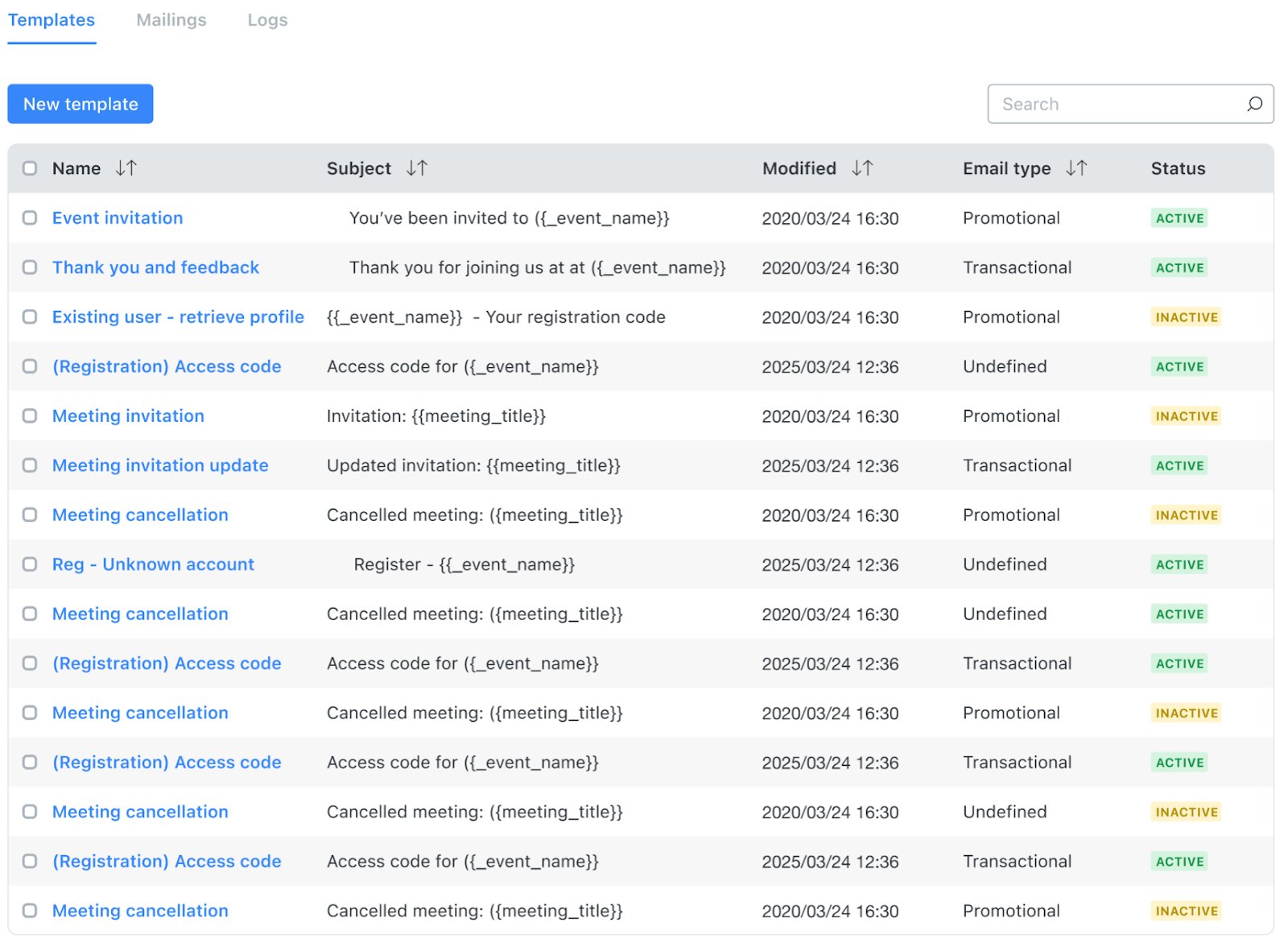
Users can see at-a-glance the classification of the email templates in workspace or workspace template, by looking at the email list, in the Email type column:
How to classify your emails?
The email classification helps Backstage users to determine whether an email template should include an “Unsubscribe” link that recipients will be able to action:
- Transactional emails: No “Unsubscribe” link should be included in the email footer.
- Promotional emails: An “Unsubscribe” link must be included in the email footer.
-
Undefined. Temporary status.
Emails that have not yet been classified as “Promotional” or “Transactional” by a Backstage user will continue to have an “Undefined” classification. They will be treated as “Promotional” emails by the receiving email client.
Backstage users will therefore need to:
- Select the classification they want for their email template.
- Adjust the email body and footer accordingly, to make sure that “Promotional” emails include at least one Unsubscribe link (usually in the email footer) and that “Transactional” emails do not include any “Unsubscribe” links.
1 - Using the "Email type" classification in the Email editor
In order to classify the email templates as “Transactional” or “Promotional”, a new Email type selector is added to the email templates when opened in the Email editor:
Here there will be three possible options:
- Transactional emails: No “Unsubscribe” link should be included in the email footer.
- Promotional emails: An “Unsubscribe” link must be included in the email footer.
-
Undefined. Temporary status.
Emails that have not yet been classified as “Promotional” or “Transactional” by a Backstage user will continue to have an “Undefined” classification. They will be treated as “Promotional” emails by the receiving email client.
When selecting a classification for the email template, Backstage will perform a check upon saving the changes made to the template.
If “Transactional” is selected as the email type, Backstage will check that no “Unsubscribe” links are included in the email. If “Promotional” is selected as the email type, Backstage will check that at least one “Unsubscribe” link is included in the email. Based on the check Backstage will recommend an action to the user, but it is up to the user whether they apply that change or not.
This verification will help Backstage users adjust the content of the email templates properly based on their classification.
2 - Adding / removing Unsubscribe links in the email body and footer
Based on the classification, users should adjust the email template body and/or footer accordingly, so that "Promotional” emails always include an "Unsubscribe link”, and “Transactional” emails do not.
Unsubscribe links are included in the email footer. Use the Blocks option in the email editor to add the footer that is relevant to your template:
There are 4 footers available in the “Blocks” section that can be used:
Here we have added a “Promotional” footer that includes an “Unsubscribe” link, as this is a promotional email:
Once you have added the correct footer, you can adjust the formatting/branding to make it match the rest of your template.
Who should update the email templates?
Organization and workspace email templates are the responsibility of their owners, who need to make sure that they are classified as needed and have the correct Unsubscribe links when needed.
SpotMe / Onomi templates are updated automatically
With this change, we will automatically update all the default email templates that are used in the SpotMe / Onomi workspace templates, so that they have the correct classification applied and the correct footers.
The SpotMe workspace templates where this will be applied automatically are those that can be selected when creating new workspaces, when selecting SpotMe templates:
This means that if you create a new workspace using one of the SpotMe templates, the new classification will be applied by default to the email templates in the new workspace, based on the list above, and the correct footers added.
Likewise, when you install a module on a workspace for the first time, all email templates used by that module are automatically set up with the correct email classification and footers.
If the module is already installed, but its email templates were deleted, updating the module to the latest Marketplace version will reinstall those templates with the correct classification.
Organization templates and workspaces need to be updated manually
For your existing workspaces and organization workspace templates, we will not automatically update the email template classification and footers. This is to avoid doing anything to organizationally approved templates that could inadvertently impact the operation of your events.
You will need to follow the steps described above in order to:
- Select the correct classification for your email template.
- Adjust the email accordingly if needed (to include or not “Unsubscribe” links).
Important:
- When classifying your emails, we strongly recommend that you follow the recommended classification that we have applied to the SpotMe / Onomi templates, as seen in the list above.
- We recommend that you start by classifying all the email templates in your organization’s workspace templates, so that these changes are efficiently spread to newly created workspaces when used.
Other resources
- For more information on managing your email templates using the Email editor, please refer to the Managing and creating email templates article.
- More information is available in the Making sure your participants receive your emails article article.
- More information is also available in the What happens if an attendee has unsubscribed from event emails article.

Comments
0 comments
Please sign in to leave a comment.